| ||||||||||||
| ||||||||||||
 Requiem Software Labs is a wireless developer for Android, T-Mobile Sidekick and other 'Powered By Danger' devices. Requiem provides mobile entertainment and application technologies in 46 countries around the world. Requiem does freelance work as well as projects by contract with companies such as Netflix, Microsoft and Google. With a combination of technical and artistic expertise, Requiem is the leading provider in applications for Android devices.



Stay tuned for additional info on these upcoming titles...



Top Games and Apps
Armored Strike Online
Classic tank warfare with a modern touch - and extreme firepower!

Duck, catch and throw your way through high-impact action!
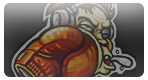
Dodge, jab and brawl with intense first-person arcade-style boxing!